

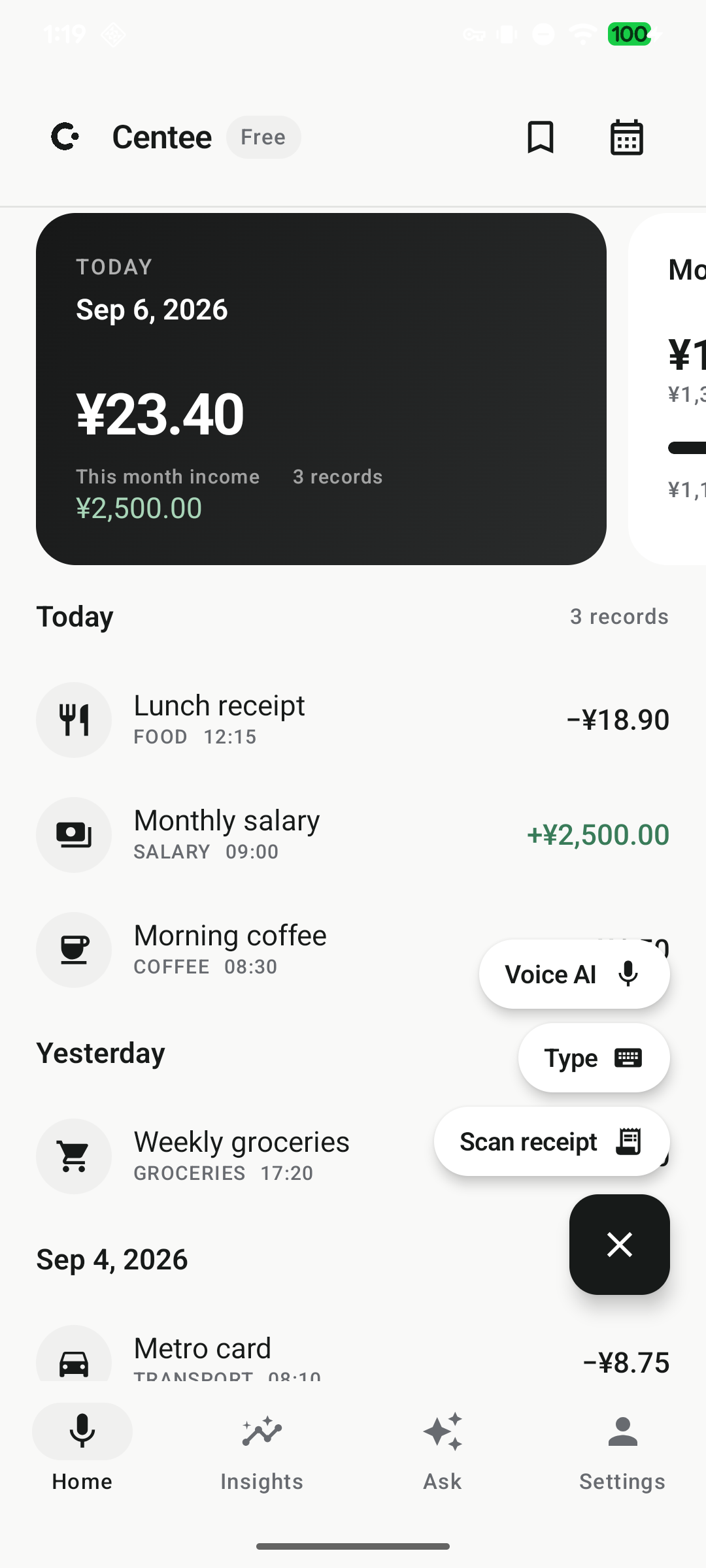
MINIMAL BY DESIGN
Keep the context. Lose the friction.
Payment confirmations often contain the details you need, but they quickly get buried in a gallery. Sharing the screenshot to Centee keeps the amount and original context close to the expense it represents.
The screenshot becomes a starting point, not a blind import. Review the suggested details, make edits when needed, and decide what belongs in your spending history.
HOW IT WORKS
From moment to a record you understand.
- 01
Capture the payment confirmation
Take a screenshot after a payment, transfer, receipt, or checkout screen when it contains the detail you want to keep.
- 02
Share it to Centee
Use Android’s share sheet to send the screenshot directly to Centee instead of leaving it among unrelated images.
- 03
Review before saving
Check the amount, date, category, and payment method, then save the expense with the original context attached.
WHAT STAYS SIMPLE
Built around the way you actually spend.
- Keep payment evidence with the expense record it explains.
- Avoid retyping every visible detail from a confirmation screen.
- Review the suggested details before they become part of your history.
COMMON QUESTIONS
A few useful answers.
Can I share a payment screenshot directly from Android?
Yes. Use Android’s share sheet and choose Centee to prepare the screenshot as an expense record for review.
Can I edit the record after sharing a screenshot?
Yes. Review and edit the suggested amount, category, date, and payment method before saving the record.
Does screenshot entry require bank linking?
No. You can use screenshots, receipts, and quick entry without connecting a bank account.
START SIMPLY